
Need Help?
Find quick answers to common questions about Chroma.
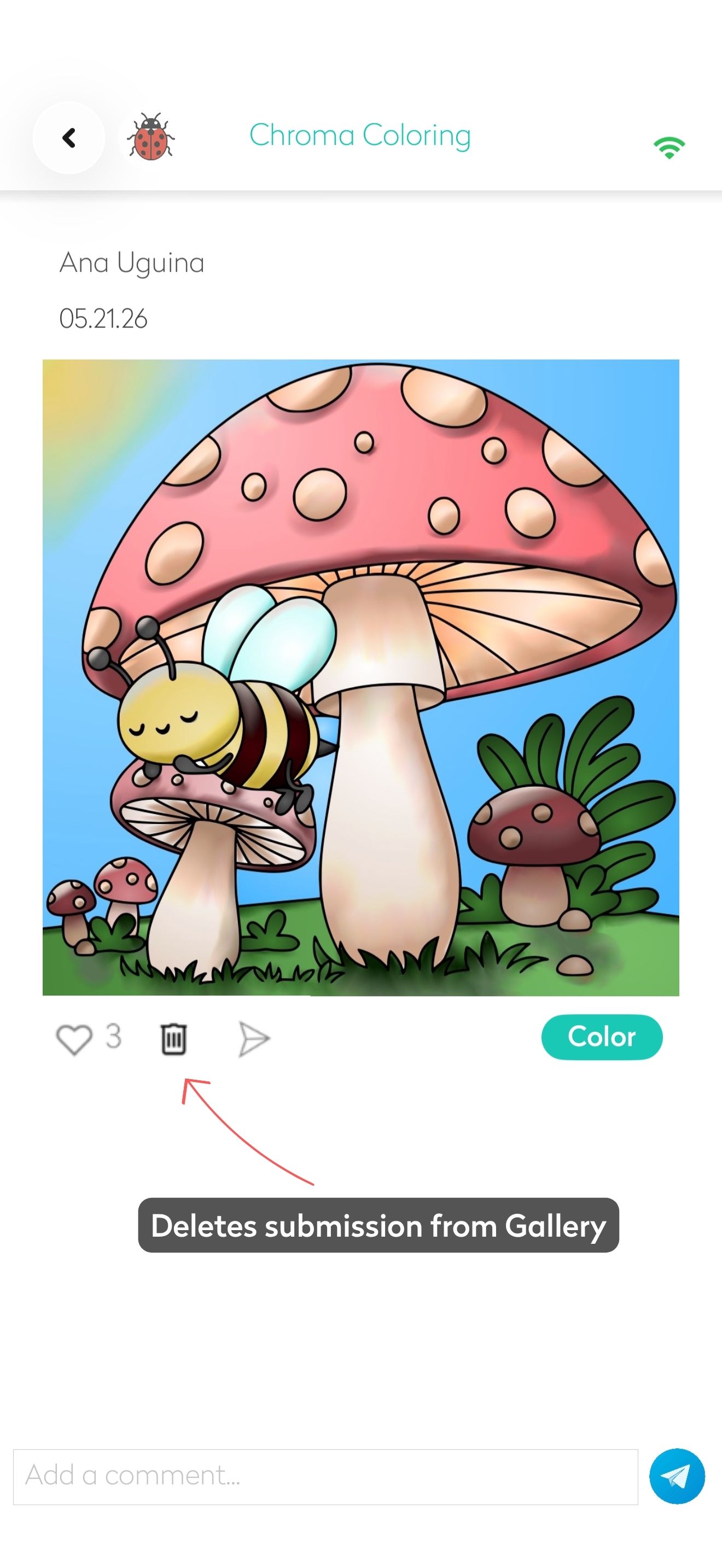
Open the Gallery and tap the artwork you want to remove. This opens the image details page. Under the image, you'll see options such as Like, Share, and Delete. Tap Delete to remove your submission.
Yes, Chroma includes a Color Picker feature. To pick a color from your artwork (or from inspiration), simply long-press anywhere on the page you are coloring and the Color Picker will appear. You can then move your finger around to select and reuse colors from your coloring page.
If your purchases are not appearing: Make sure you're signed in to the same Apple account used for the original purchase. Check that your internet connection is active. Open Chroma and tap Restore Purchases in the subscription or settings area. If the issue continues, contact support and include your purchase details so we can help investigate.
Purchases are tied to the Apple account used when they were originally made. Make sure you're signed in with the same Apple account on your new device, then use Restore Purchases inside Chroma to recover your content and subscription access.
Open your artwork and tap the Share/Export option to save it to your device or share it with others.
Yes. Chroma supports importing your own artwork so you can color custom designs. Open the Create tab and select the Import Photo/Sketch option.
Make sure you're using the latest version of Chroma. Updating often fixes known issues and improves performance.
Most coloring features work offline, but features such as Gallery, syncing, or subscription validation may require an internet connection.
Open the app and from the Today tab hamburger menu select "Report a Bug" and submit a report with your email address, and we will promptly address the issue.
Didn't find your answer?
File a bug report in the app and include your question — we'll answer it promptly.